Halloween Costume ideas 2015
Articles by "game"
@dorothiar #arttips #interview 101 2 Column Template 2012 mentee 2013 2013 mentee 2014 2014 mentee 2014 Portfolio Winner 2014 SCBWI Portfolio Mentorship Winner 2015 mentee 3 Column Template 360 3d 3d print 3d printing 3delight 8bit Abbey McCulloch abstract acryla gouache acrylic action addon adobe Adobe Flash CS3 Adobe Illustrator Advanced Tutorials advection Advertising advice Agata Wierzbicka agents airplane Al Wiseman ALA Alan E. Cober Alan Lee Alex Ross Alexandra Compain-Tissier Alexandra Lekias Alexandra Levasseur Alexandre Korobov Alexis Winter algorithm alien ALT Amelie Hegardt Amit Shimoni amusement an Ana Aranda analog Andrea Hrjnak Andrea Hrnjak andrea offermann andreaoffermann andreazuill Andy Musser Angela DiTerlizzi Angelika Peißker animal logic animals animation animation nodes anime anisculpt Anja Kroencke Anna Higgie Anna Jensen Anna McKay Annabel Briens AnneBerry Anneke Krull Annu Kilpeläinen anstudy anthology António Soares ar arduino area armature arrange array array modifier arrow art art director art directors Art is fun! art reps art tools Artaksiniya arthictecture arthur rackham artists artwork ase Ashlyn Anstee Asian aspiring asset atom attribute attribute transfer audio Audrey Kawasaki augmented reality aurasma Aurelius Battaglia author illustrator automatic automation Autumn Whitehurst avatar Avrom Yanovsky AW14/15 award awards Babeth Lafon Babies baboon Baby Love Background background color bacteria bake baking ball Bamboo banner Banner images banner making Barbara Dziadosz barcode basic bbox beads beats Bec Winnel beginner Bel Johnstone Ben Denison Bernie Fuchs Berto Martinez Beth Krush better photos bge Bijou Karman Bike biscuit bishop black and white black and white art Blair Breitenstein blam blender blender game engine blender3d blending Blinkie Blinky blob blocks Blog Tips blogger Blogging Friends blogs Blonde blur effect in pixlr and photoshop blur images and pictures bmesh bmesh viewer bolognaragazziaward bombing bone bone modeling bones book book launch books boomerang bottle bounding box bowl bpy brian eno brian ormiston Brian Sanders brian won brick bridge Bridget Davies bright Brooke Boynton Hughes build modifier building burns business Buttons bvh cage Caitlin Shearer caldecott calibration camera camera settings camera tips Candle capcom card career Carole Wilmet cartoony Cassandra Rhodin cast Catherine Campbell Cecilia Carlstedt cell center pivot centipede cg cg photography chair challenge Chanel changin color in pixlr changing color chaos character Character Bible character development charcoal charles Charlie Dot Charlie Hebdo Children children's book illustration chocolate Christina Drejenstam christina forshay Christina K christinaforshay Christmas Cindy Derby circle circle dance city cityengine clock clones cloning cloth Cloud based clover CMYK Coco Chanel Cody and the Fountain of Happiness coffee collect collection Collections collision color color balance color cast color correction color mode color study colorful Commercial Use complexity component compositing composition computational thinking computer concept art Condensed Posts conference connect connect the dot connection Connie Lim Conrad Roset constrain constrast contagion content Contest contracts control converter copy copyright Corinna Luyken count Courtney Brims crack Craft craftsmanship Craig & Karl creative creativity creature cricket Cristina Garcia Martin critic criticism critique Crop Crop Tool cross section crowd csv cubism curve curve modifier custom Custom Blog Design Custom Blog Design Tutorial Custom Blog Designers Custom Illustration custom properties Custom Signature custom xml cut cutting plane cycle cycles dae Damien Florébert Cuypers Dan Hillier dance Daniel Egnéus Daniel Segrove Danny Roberts Daren Newman Dasha Tolstikova data data path David Blossom david diaz David Shrigley David Stone Martin Dean Hardscrabble Debbie debbie ohi debbieohi deform deformer degrees deleting background in pixler demo demoscene desaturation of images design design by numbers design process Design Tips dictionaries dictionary Different Text Writing in Pixlr digital digital paint Digital Scrapbook Freebies Digital Scrapbooking disk distance distractions distribute diversion DIY DIY Contest Dolf Veenvliet Doll Doll Bones dolls domino domino effect doodle Doodles door doraemon Doris Jackson Dorothia Rohner dots dpi draw drawing drill driven driver drivers dual versions dummy duplicate duplicates duplication dupliframe dvd dynamic dynamic paint dynamic text E Simms Campbell Easy easy pixlr Easy Tutorials Ed Graham Ed Vebell editing editing photos editors education effect effects ego Eleanor Dalton electric Elia Fernández eliza wheeler Elizabeth Mayville elizawheeler Emily Forgot Emma Zanelli emoticon happy-face Emotional storytelling empathetic characters empty entoforms envy epicycloid EPS Illustration Epson scanner erasers Erin Armstrong Erin Petson erinoshea ernest shepard Esra Roise euler evaluate line Eveline Tarunadjaja evenly spacing vertex event everywhere door exhibition Expandable Posts experiments explode exploded view export expression extrude eye eye color in pixlr eye trick eyeball face rig facial expressions facial setup factory Faiyaz Jafri Families fashion illustration fashion week fcurve feature Featured Fee Harding Feedback fence Fernanda Guedes fibonacci Fifi Lapin file File Types Finalists Finding Nemo fire fix photos Flash Tutorials flicker flip flip flop floor flop flow flower Flowers fnmatch focal point follow up font Fontaine Anderson Fonts food footage For Sale force form formula fractal fracture frame Frames Francois Berthoud Frank Bellamy Frank Furlong Franklin McMahon freckles Fred Steffen FrederiqueBertrand Free for Commercial Use Free for Personal Use Free Stock Photography Free transform tool Freebies Frenchillustration Fritz Siebel frosted mylar fruit ninja Fumi Mini Nakamura Fun function futurism FW2017 fx Gabriel Moreno Gabriella Ibarra game game animation gameart gamma gangnam style Garance Doré Gary Fernandéz gel medium generate generative generator geometric geometry Gerald Lazare Géraldine Georges GIF Gildo Medina Girl Giuseppe Castellano Giveaway glorar goals golden ratio google google docs Google Tools Grant Young graph graphite graphite transfer grease pencil grid group group node growth Gucci Guest Guil Godier gustave dore hair handbook Harper's Bazaar harpercollins Harvey Schmidt Haute Couture head Headers heat map Helena Hauss hexagon hexagonal grid Hiroshi Mizuno Hiroshi Tanabe Holiday Holly Black homology honeycomb hook horror houdini how to how to blur a face or an object in pixlr How to change eye color how to delete an object how to desaturate an image how to edit a image in pixlr how to erase an object how to fix red eye problem how to fix red eyes in pixlt How to fix the parts in pixlr in photoshop How to make a banner in pixlr How to overlap the nevus how to remove a object How to remove an object in pixlr how to remove red eyes How to Remove the Background of an Image in Pixlr How to remove the parts that you don't want in pixlr and photoshop how to replace color How to write a Patterned Text in Pixlr how-to Hsiao-Ron Cheng hsv hue humor Hyshil I love illustration magazine idea ideas Igor+André illusion illustrating illustration illustration board Illustration Books Illustration Intensive Illustration Now! Fashion illustration process Illustrations Illustrative Berlin illustrator Illustrator Intensive Illustrator Tutorials iloveillustration magazine image ediditing lessons Image Ready image sequences image theft imaginative import import text import vertex color improving photos inbetween index visualizer Info Ingrid Bockting ink inktober input Inspiration inspirational quotes install instance instance switching intensive interaction Intermediate Tutorials internet interoperability interpolation intersect intersect edges intersecting intersection interview introduction invoke subprogram io ipad Irana Doucer Isabella Hemmersbach islam islamic iteration Izzie Klingels Jack Hearne Jack Tremblay James Dignan James Gurney japanese Jason Brooks Jean Kim Jeanne Detallante Jen and Chris Creed Photography jen betton Jen Rofé Jenny Mörtsell Jeremy Combot Jeslyn Kate Jesse Auersalo Jessica Jessica Lanan jessicalanan jewellery jewelry jiggle Jim Schaeffing Joe Bowler Joe Cleary Joe Isom Joe Krush Johanna Goodman john maeda John Vernon Lord joint Jordan Sondler JPEG JPG jpop juana martinez-neal juanamartinezneal Judge Judit Garcia Talavera Judith van den Hoek Judy Byron Schachner Jules Julien Julian Beever Julie Verhoeven Jump Break Tool JW Anderson K-Fai Steele Kaethe Butcher Kareem Iliya karel zeman Kate van Harreveld Kathrin Kuhn Kathryn Ault Noble Kathryn Noble Katie Kath kdtree Kei Meguro Kelly Beeman Kelly Light Kelly Smith kelly sonnack Kelly Thompson keyframe keyframing kidlit kidlitartists kimberlygee Kirkus Review Kisoo Chai Kodak Konstantin Kakanias Korean illustration Kotaro Chiba Kozue Himi Kremos Ksenia Finogeeva KT Smail kuler Kustaa Saksi Lanan Laptop larry gritz lasso tool latte lattice Laura Callaghan Laura Laine Lauren Rille layer layering Layla Holzer layout leaf learning learning blender LED Leendert meets Ingrid lego length Leonard Starr lessons levels LFW A/W 14 liangzhu liero lightbox lighting lightning Lina Bodén Lina Ekstrand Linda Dorn line line connect line drawing lines Links Linky Love Linn Olofsdotter Lionel Gilbert Lisa Anchin Lisa Billvik Lisa Krannichfeld lisaanchin lisbeth zwerger Liselotte Watkins list list comprehension List First Last listing locator lofting logo Logo Design Lola Dupré London Fashion Week loop looping loops looptools Lorraine Fox lossless lossy lost weekend lostweekend lotte reininger Louis Glanzman louis vuitton Luciana Rondolini luciograph LULU* lv Lynnie Zulu Mac macgyver macouno maeda Magda Antoniuk magic Magnus Voll Mathiassen mailing mailings maker Makiko Sugawa making banners Malika Favre MAMP mandala manga map map range maplelam mapping Marcel George Maren Esdar Margot Macé Margot van Huijkelom Maribeth Olson Marie El-Ahmar Marilyn Conover Marina Esmeraldo Marine Marbleindex mario Marlies Niemeijer Marsha Riti Martha Rago Martin Krusche Martine Johanna mask masking material materials math matrix matrix apply matryoshka Matt Baker matte medium Matthew Woodson maya maze mdd Meagan Morrison measure megaman Megan Hess Meizhen Xu Mel Crawford memory mentee mentees mentors mentorship program Mercer Mayer Meridth McKean Gimbel mesh mesh cutter meshlab Meta Tags metal gear rising Meyoko Mia Overgaard Micca mice Michael Sanderson Michela Picchi middle grade midi miku Milan milipede minidom Minima Mio Matsumoto mirror cut Misc Miss Blackbirdy miss maple's seeds Miss Take Mitchell Hooks mixamo mixing Mobile Apps mocap mod model modeling modifier modular modulation modulus mold molecule molly idle Molly Ruttan Molly Ruttan Illustration money monitors monkey mono-zero monster monster university morph morpher mosaic mosquito motion motion capture motion capture mouse motion trail moto360 mountain muji Muriel Wood Murray Tinkelman mushroom Music and Podcasts My dead pony Nadia Flower Naiad Einsel Naja Conrad-Hansen Natalie Brockett Natalie Foss nathan vegdahl nautilus Nav Bar navigation needle-felting negotiating Neil Boyle neon nescbwi14 nested New Blogger Questions New Blogger Template Tutorials new user pixlr new year new york New York Fashion week Newbery nicholas nicholas bishop Nicholas Hong Niki Pilkington Niso Ramponi nla No Software node node-based nodebox noise non linear animation Non-Web Font normal Noumeda Carbone npr number NURBS NYFW object object color change object info octopus offset Ola Volo Olaf Hayek old formats opaque projector open movie open shading language open source openshadinglanguage opensoundcontrol optical organization origami original art show Ornaments osc Oscar Schlienger osipa osl outline outliner output Pages paint paint weight painting painting on illustration board painting on wood painting with movie painting with numbers Pair pandas panorama Paper paper lantern parabola parametric parent parenting particle particle info node particles pat david Pat Zietlow Miller pattern Patterned Text Paul Faassen Paul X. Johnson Paula Sanz Caballero PC pdb pebbles pencil Pencil Sketch pencils Penguin perfume perlin Peter Helck Photo CD.8B photo editing software Photo Reference Photobucket photographing art Photographs photography photomerge photoshop Photoshop Brushes Photoshop CS3 Photoshop elements photoshop pixlr desaturaion Photoshop tips Photoshop Tutorials Picture Book Builders picture books Pierre Louis Mascia Piet Paris Pietari Posti pingpong pinnochio pipes pixar pixel pixel art pixel generator pixlr Pixlr advanced Pixlr blog pixlr desaturate keep a colorful part pixlr editting pixlr express Pixlr forum Pixlr free transform Pixlr Lesson Pixlr lessons Pixlr mobile Pixlr resizing images pixlr shortcuts Pixlr tools pixlr tutorial pixlr tutorial with pictures Pixlr Tutorials pixlr white black pixlr.com plant plot plotting ply PNG PNG Illustration podcast point point color pointilism polka dots polyCut polygon Pomme Chan pop-overs portfolio Portfolio award portfolio showcase portfolio-advice portrait position Post Dividers postcard poster Posting pot powdered graphite powerhousemuseum Prada presentation print printmaking Prize procedular procedural process processing programming projection Promotion property prototype PSD psy publishing pulse puppet puppetry pydriver pydrivers pyhandler pyhandlers pyramide python quad quick select set quick tips qumarion Rabbit Moon Rachel Ryle radians radius ramp random random motion randomization randomize range float raspi Ray Houlihan reading reading XML READY-TO-WEAR realflow Rebecca Clarke rebecca dautremer Rebecka Skog rebuild recursive recursivedrawing red eye remove reducing glare reference referencing release remesh modifier remix removal remove remove red eyes remove unwanted objects Removing backgroung render rendering renderman repeat repeater repeating replace replacement replacing color representation rerouter resample resampling research Resizing image resolutions retopology retro review revolve rgb rib Ricardo Fumanal Richard Scarry rig rigging rigify Rikke Jorgensen ring ripple roadkill Robert Heindel Robert J. Lee Robert McCloskey Robert Shore Roberta Zeta Robin Rosenthal robot robotic rocks Rodolfo Montalvo Roller Coaster rotation Rousseau rsl Rubin Pfeffer ruler tool Russ Mills russian rut S/S14 S/S15 S/S16 Sabine Pieper sadako Saftey Pins Sainte Maria Sale Sam Weber Sanda Suy Sandy Kossin santoso Sara Andreasson Sara Singh Sarah Jacoby saturation artist tools scan scanners scanning scatter scbwi SCBWI 2015 mentee SCBWI conference scbwi germany SCBWI mentorship scbwi-la scratch scratchboards screensaver screw screw modifier script scrub sculpting seamless Seamless Patterns Search Engines select by material select by name select by type SEO sequence series set keyframe set keyframes shader shading shadow Shannon Stirnweis shape grammars shape key shapekeys shapes shards shatter Sheilah Beckett shell ship shipping shipwright Shoes SHOWstudio shuffle Sid Barron Sidebar Titles Signature Silja Goetz silkworm Simon and Schuster Simon Varela simple simplicity simulation sine Site Engine Optimization Sjoukje Bierma sketch Sketches sketching skin skin modifier skinning slice slicing slides sloth slow parent smoke smoothstep SN snake Sneek Peek snippet Snow Snow White Snowflakes soccerball social media Social Media Buttons Social Networking society of illustrators Society6 soft body softbody Sonia Menti sound sound wave space spaceship sparta special spider spiderman spiderweb spin spiral Spiros Halaris Spiros Halaris x Urban Decay spline Spot Healing Tool spreadsheet SS16 stack stacking stair stamp Stan Galli star starfish stencyl step Steven G. Dobson still Stina Persson stone stones storytelling strand strand info strands street art string stripes structure studies studio style stylistic summary Summary Posts Summer sun supplies surface Susan Farrington suzanne Suzanne Kaufman sverchok swatch switch sydney system table table of contents take out background Tal Drori tangent tangled Taschen teaching teapot Template Templates tentacle Tess Jacobson Tex Avery text text editor Text Formats Text Styles in Pixlr texture texturing The Cartorialist The Grudge Keeper The Purple Book thinker1 Thomas B. Sawyer thread TIFF tile tilecam tiling time time code Tina Berning Tina Kugler tips tips for artists Toby Neilan Tom Baxter Tom Bjarnason tombow tomie depaola tool tools topology tower Tracy Turnbull Train transfer drawing transferring sketch transform transformation transit travel triangle wave Tricia Springstubb trigger tris tristan lock tube tubes Tutorials twitter type tool typeface typography unbake unity3d universal unquad utah uv valentine Valentino Valerie Servais vanilla variable variation variety vase vector vectorized Velwyn Yossy venus Veronica Ballart Lilja vertex vertex color vertex group vertex paint vertex weight VFX Victoria Boysen video Videos viewer Vintage virtual virtual studio visualization vivid vividfestival VOGUE volumetric voronoi Vote voxel voxelated voxelation walking teapot Walter Einsel wand tool water soluble graphite watercolor wav wave we need diverse books web webbing Week Themes weight welcome Wendy magazine Wendy Plovmand what casues red eyes What is Pixlr Wherever You Go Wide Awake Bear wiggle Will Davies Winner Winnie Fitch Winnie Truong Winter wire wired wireframe wolfram Woman wood woodwork wool wooly wordpress work workflow World writing writing XML www.pixlr.com XML YA yayoi kusama Yelena Bryksenkova yoda Yoko Furusho Yuliya zaha hadid zen zsphere

I have a feeling that Blender Game Engine (BGE) is very under-utilized by many of Blender Artists. BGE can certainly do a lot that is not necessarily for game creation, but potentially useful and powerful.

I had looked at BGE some times ago while reading one of the available book on BGE and now decided to look further details.

In the past, I casually made these using BGE:
- Interactive 3D Portfolio
- 360 viewer

Hopefully, we can together come up with simple ideas that can be useful for general usages.

INTERACTIVE + REAL-TIME

Recently, I found some big interest in interactive applications and real-time Computer Graphics creations. Game productions make use of these "procedural" real-time stuffs. Animation (like dynamic), music/sound, shaders, etc. all working and can be controlled in real time.

The great thing about game or interactive applications is its immediacy. Unlike Film production where we need to worry about render time where the result is final, in Game production, we will end up with products and applications that is interactive and continuously being changed and rendered in real time. The users have control over the final product.

I mean, this is obvious, right? But very powerful if you think about it.

If we can connect the interactivity and real-time nature, we can create automation which relates to robotic. Customization is also possible.

UNITY 3D

By some chances, recently I had access to a game design workshop on Unity at Sydney's Powerhouse Museum. It is basic workshop for young brilliant kids (7+), however, I like the approach of going through a complete project from A to Z.

The teacher at Powerhouse Museum, James, said their method is to teach game hollistically. Meaning like going through whole production, not getting too much details with things, but giving enough general (yet complete) understanding of game production and design concepts, so that learners can then continue on their own.

I found that Unity 3D is a very "scripted" game authoring tool. You need to know or understand programming or coding if you want to go far. However, Unity is also very good and organized. I love the Unity interface and workflow.

Unity works well with Blender.

There is this great book on Unity by Penny de Byl:
http://holistic3d.com

The book is very balanced in Technical and Artistic contents.

SCRATCH AND STENCYL

If programming and coding feels scary, you can start with Scratch programming. Then you can move to Stencyl, which is like a more advanced version of Scratch, specially made for game programming.

These kind of tools are great for starting.

Blender BGE & its Python programming

BGE is interesting. Unlike other 3D packages, BGE inside Blender is quite solid. It is probably "limited", but it is sufficient for many applications or game creations, and can be expanded.

I am hoping that slowly, I can collect some informations about BGE and Python game programming and reshare it with you as I understand it.

These areas are what I interest the most

  • Animation and Procedural Animation
  • Procedural Shader (GLSL, CG language)
  • Some scripting trigger and action, such as creating control and automation

USING BGE AS MOSQUITO REPELLANT

Ok, this one is probably the weirdest subtitle you will ever read, that sounds like totally unrelated to Blender.

But read through, it will make sense very soon :]

We are going to create a super simple Colorful Motion Graphics "Mosquito Repellant" using BGE. How can that possible? Let me explain.

Do you often have Mosquito problem at home? Everyone must have experienced how annoying it is to have mosquito flying around before sleeping. You can turn on Air Conditioner, mosquitos are usually afraid of cold temperature. But for me, I don't like using A/C to repell them.

I figure out a strange theory that mosquitos are either attracted or totally distracted by a bright colorful light that keeps on changing. So, if you actually have a "computer screensaver" that keeps on changing color, mosquito will stop disturbing you (hopefully). Work best in a dark bedroom.

NOTE:
If you have iPad or iPhone, I recommend this app called "Flashlight" that allows you to create a changing color. Other smartphones probably can find similar apps.

ANYWAY, for the rest of people without iPad or iPhone, do not be afraid or feel disappointed, we have a computer (with monitor) and Blender, and definitely we can create that "Flashlight" program. Very easily and no programming or coding!

We just need to use this ability in BGE:
Changing Color (RGB) value and Alpha transparency of an Object in Blender and make it Looping.

When I am researching for "how to change Material color" in BGE, I found too many answers. Some answers are too old (older version of Blender) and some are not straight forward. However, luckily, there are few exceptional people that explain and answer the right problem, the right way.

Blender always needs more Blender evangelists and teachers who are developers and artists. Thanks to forum like Blender Artists and many blogs out there, everyone can continue advancing their Blender skills.

This one video tutorial helps me a lot.
http://www.youtube.com/watch?v=jodWo9ryb4E

Another one also really good demo showing the capability.:
http://www.blenderartist.org/forum/showthread.php?299708-Changing-opacity-of-objects
http://www.youtube.com/watch?v=N2jbxH3BTyQ

More useful links that is related to the topic:
http://blenderartists.org/forum/showthread.php?126051-BGE-materials-textures
http://blenderartists.org/forum/showthread.php?325609-How-set-object-s-material-and-texture-in-game-using-python-script-BGE-python
http://blenderartists.org/forum/showthread.php?202264-Changing-material-in-bge

So, apparently there are many ways you can setup "Object with changing color" using BGE:

  • Use Python scripting way to change color in realtime, this is more sophisticated and can make a more interesting application.
  • Use Blender Actions (Animation). Luckily, thgis method is actually quite simple. It can be made by anyone, even someone who use Blender for the first time.

Once you have the Material setup for object and simple animation of changing color, you then just need to LOOP the animation of changing color and then run the BGE creation as a Standalone application.

Enough talk, let's make it.

1. Startup BGE scene
What we are going to create is very, very simple. We just need an object that continuously changes color overtime. Since the final will be a BGE application, it will run in realtime.

ENVIRONMENT: Set Blender to "Blender Game" environment. You should find this option at the top bar.

CAMERA: Reset the default camera, zero the Position and Rotation in the properties and then slightly bring it up.
The final Game/Application should make use of this camera view.

For our application, we really only need a flat basic Plane Mesh with Material that changes color.

Just for reference (on how camera is facing the senece, I added Suzanne the Monkey object, I smooth her and add some divisions. The setup is like below. We can have 3D view on the left and another 3D view on the right layout.

Remember hitting P will activate the Game Engine and hitting ESC will escape that running BGE.


We can test our BGE application using Standalone Player. Which should result like below. You see how in Standalone app we are getting a view from camera. This is what we want.


We get just black looking render, because we have not applied shader yet. We will do that next.

You can set Standalone playback test to be Full Screen.

2. Apply GLSL Materials
Change BGE environment setup to use "GLSL" for rendering. --- CORRECTION: Use "MultiTexture" if you want below to work.

Add some Materials to the object. For my scene, I give Blue Material for the flat Plane and Red Material for the Monkey.

Test the game.


That is the default basic materials. Notice how the default light is shading the scene and the Materials look quite nice.

Look at this old BGE tutorial, I like the simpliticy of this tutorial and look at the result, it is so good looking even back then. Today, with GLSL render, we can get a lot better looking result:
http://otothecleaner.free.fr/tutorials/LevelDesign2/level4/level2-4.html

3. Get rid of jaggies/aliasing.
You may notice the jagginess of Suzanne. We do not really need Suzanne but anyway, increase the AA (anti-aliasing) Samples to higher than zero and now you have a nice smooth blending between Suzanne and the background.

No jagginess on the edge of the monkey.
I actually like BGE real-time renderers look. With proper texturing, nice GLSL shader, you can have a very nice 3D visualization. Definitely something to explore at later stage.

4. Make flat Material (WARNING: Blender Bug) --- Read below, but SKIP FOR LATER
For our purpose, we do not really need a light shading, we actually just make the Material = Shadeless.

HOWEVER, if you at this stage make the Material = Shadeless, there is a bug in BGE that will completely make the next step is not working.

So, I think it is best to make the Material shader flat later. Please skip this step for later.

I recommend you to create Color Animation first, then make Shadeless.

NOTE: Unfortunately BUG like this happens. It took me a while to figure it out. I need to report this to Blender Foundation.

I could be wrong about the bug, but I am using Mac, and I tested many times, if I change Material to Shadeless, I use the ability to animate material color overtime.

CORRECTION:

The reason animation didn't work is because I use "GLSL" mode for BGE. Use "Multi Texture" for BGE instead.

If you want GLSL mode to work, you need to use Object Color. You can animate Alpha (transparency) of object this way.

If you make Shadeless before animating, you will not get the animation as expected. Weird and very annoying bug.

5. Changing Material Color
To change material color overtime, we simply animate the Color RGB. Set keyframes on Material Color, and change the color for 100-150 frames. The animation range is up to you actually.

6. Loop the animation in BGE.
This step is the most important for Blender Game Engine. We will LOOP the animation using Action actuator.

SENSORS: Always (enable that button greyed below)
CONTROLLERS: And
ACTUATORS: Action (use Ping Pong, set the Start and End Frame).

Ensure you select the right action related and linked to the object.

Connect all three.


You are basically done and if you playback in realtime, you will create an app that will repel the mosquitos. Really.
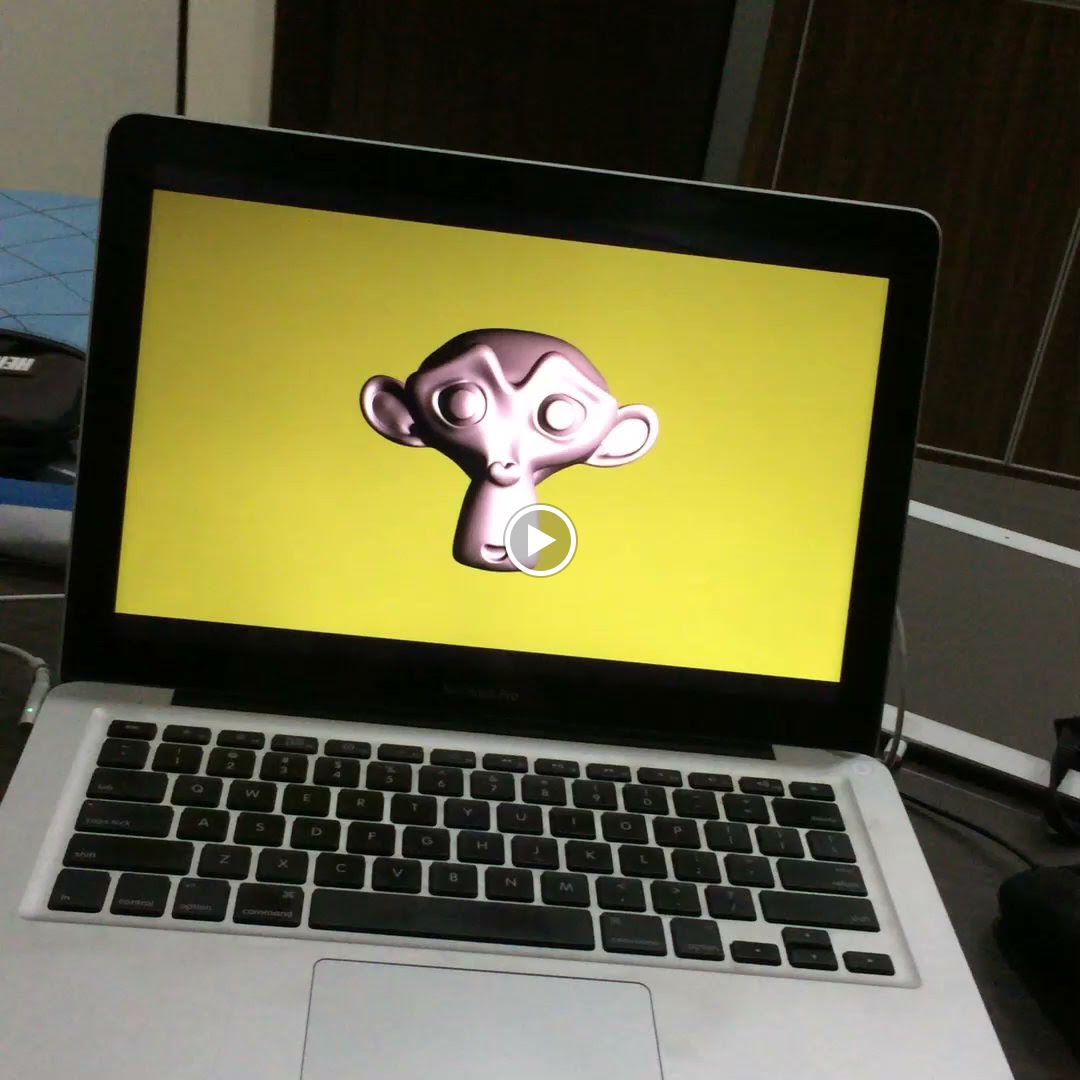

It's very simple, but you just created an applications that will work on any operating systems.

You can export it as a packaged app on Mac or exe on PC. Just enable the export as Stand-Alone Running Game inside the Add-On menu.

OF COURSE:
- You probably should add some basic UI to quit the app, etc. Simple controls/interactivity to rotate the monkey for example.
- Add other beautiful looping things

You may think you do not learn much, but wait for the next post in the series. This simple LOOPS is enough for you to create many useful apps. Even interactive point and click games for kids.

This looping thing is an introduction. You can create multiple scenes and add some button interaction to jump to different scene quite easy in BGE.
  • INTRO SCENE
  • LEVEL SCENE
  • CREDIT SCENE

BGE Color Changing, the Python Way

Below is a quicky example:


EXAMPLE CODE:
import bge
import random

cont = bge.logic.getCurrentController()
own = cont.owner

# print(random.random())
myR = random.random()
myG = random.random()
myB = random.random()
myAlpha = 1.0

newColor = [myR, myG, myB, myAlpha]

own.color = newColor

So with above Python script, we can randomly update and change the "Object Color". Apparently it is rather simple to modify the "color" attribute of Game Object like above.

Related Links:

Below is a really good YouTube channel to learn about BGE and Python scripting:

I will talk more about this in the next post. Don't rush in into Python Game scripting if you are not familiar with Python scripting.

What better is to understand the BGE workflow first. Knowing what can be achieved without script (with node alone) and with script.

In few weeks to come, I will borrow Mike Pan's book on Blender Game Engine (BGE) from the library, by then hopefully I can understand BGE better.

REGARDING THE GLSL PREVIEW BUG...

GLSL should be the mode where our game just works and displaying properly, but as you may notice, in 3D view, if we tap the P, the GLSL mode does not work properly. But it works on Stand Alone Player!

I am asking this GLSL issue at the forum here:

There is somewhat this "inconsistency" of Multi Texture mode, GLSL mode in BGE that sometimes bug me. Such as having to enable "Object Color" in order for GLSL to obey the Action animation of Color. I believe Multi Texture is the older mode for BGE.

Hopefully we get the answer soon.

UPDATE 2014.02.18:

I figure out myself why I am getting a weird result when using GLSL. Viewport Shading: Texture Mode and Solid Mode. It needs to be in Texture Mode!

By default, it is set to Solid Mode. For users switching to GLSL on BGE, when they press P and getting something flat like below:


All you need to do is change Viewport Shading from Solid to Texture.


And you should be getting a more expected BGE realtime playback below:

It was a bit dumb, but anyway, at least if you encountered this, you know how to fix it. I really think it should not be the default result, or at least there is a notification or something.

Now, the GLSL mode will require you to use Actions from "Object Color" if you ever want to animate the Color RGBA (RGB and Alpha transparency). Material Diffuse will not work. I have to double check this again, but I think that's correct. 

FURTHER ON...

Think of different ideas that uses ANIMATION and LOOPING for BGE, you can create SCREENSAVER application this way!

This kind of simple apps is something you can make quite easily using BGE. Of course, from simple apps, we can start building a more complex interactive apps, then games.

GLSL inside BGE

I feel challenged to get into GLSL Programming. I know this is probably more complicated than the OSL, but worth looking into.
http://en.wikibooks.org/wiki/GLSL_Programming/Blender/Minimal_Shader

Looking at some examples of GLSL on WebGL like below is quite amazing:
https://www.shadertoy.com


ONE MORE THING... DEMOSCENE

I don't have much knowledge or experience about things called "demoscene", however, I have seen some DEMOSCENES back then when Internet was still slow. There are some really memorable demoscene, which was tiny in file size, however, it was captivating.

I didn't see "demoscenes" as much, however, I think the artform is still growing.
https://www.youtube.com/watch?v=iRkZcTg1JWU

Now, I am really wondering if Blender Game Engine could be used for DEMOSCENE of some sort. Why not? I think it is there. It's open source, the BGE is great, easy to use. Maybe not 100% DEMOSCENE pure algorithms, however, imagine something that is more interactive, less linear, has some kind of narrative, you got something that is kind of DEMOSCENE. It can be poetic, but most important, it needs to be REALTIME, not rendered. Maybe it also needs funky Machine Made tunes? Tell me what you think in the comments, if you have similar thought. Thanks!

UPDATE 20140216

Researching around the idea of using BGE more than just for game creation, I stumbled into this old post from Blender Nation. Mike's Pan examples. Will check if these examples still work, maybe can learn few tricks.
http://www.blendernation.com/2006/12/03/using-blenders-game-engine-for-more-than-just-games/

Simple game where players control the Box and collect Spheres.
I decided to continue with this BGE post series right away to keep the ball rolling.

From the previous post, you should be able to create a simple BGE setup where user/player can control an object or a hero character.

In this post, you will learn how this hero character can collect points or store values. Very simple but super important concept to understand.

BGE: Point Collecting / Property + Value

There are probably many ways you can set this up, but let see one way that I can explain.

From the above screenshot:
  • We have a simple game environment, from a Top View ortographic camera. 
  • Our hero character is that Box that moves in 4 directions (up, down, left, right).
  • There is that green sphere that this hero character must collect to get points.
Ok, now how to make it happen?

1.
For the Ball object to collect, we create this setup:
SENSORS: Collission -> Property: Hero
CONTROLLERS: And
ACTUATORS: Edit Object -> End Object


2.
For the Box object (Hero character), we create this setup:
SENSORS: Collision -> Property: Ball
CONTROLLERS: And
ACTUATORS: Property -> Add -> pointP, with a value of 1


What is really happening here? A lot:
  • We basically use SENSORS called Collision here and it will detect collisions event, all kind of collisions in fact even when our Box character is touching or colliding with the floor as Dynamic physic object. For our purpose, we only want to specifically detect collision event when Box is touching a Sphere. To do this, we created special Game Property for our Box (we call it "Hero"), and our Sphere (we call it "Ball").
  • Your noticed there is another Game Property called "pointP" as Integer value, for Box object. You can actually attach this Game Property into anything, maybe even on an Empty that stores everything Value related, and this is probably a better practice. Anyhow, for now, I added pointP as Game Property of the Box. This stores the number of POINT and keep adding the value whenever Box is Touching a Sphere.
  • With our Sphere, we also have SENSORS Collision that detects collision from Box only. But for Sphere ACTUATORS, we tell it to end/kill itself with ACTUATOR: Edit Object -> End Object.
In short, what we setup for BGE is really simple but very useful: 
Whenever box collides with sphere, add +1 point.

Property and Value play a very important part in Game. 

There is an alternative to this below.

BGE: Point Collecting via Message ACTUATOR and SENSOR

This is a really nice trick shown by Ian Scott, I will have to point the YouTube links again because I learned this nice trick from him: 

So, this is a cool technique and probably a concept that you will use more often, especially when you started to use Python for the BGE.

Basically, instead of relying so much on Collision SENSORS and ACTUATORS, we also use Message SENSORS and ACTUATORS.

The Logic Network becomes like this: (here we use Near SENSORS)

1.
On the Sphere:

SENSORS: Near
CONTROLLERS: And
ACTUATORS: Edit Object -> End Object
ACTUATORS: Message -> ping (this subject can be anything)

Now, with that setup, whenever our Hero Box got near the Sphere, it will "broadcast" a message to the whole scene, and hopefully the message got delivered, only if we specify a listener.

2.
On the Box:

SENSORS: Message -> ping
CONTROLLERS: And
ACTUATORS: Property -> Add -> PointP -> value of 5

By using Message SENSORS and ACTUATORS, we can have something that is more logical.

The same concept is used again and again: TRIGGER and ACTION. You also learn a new things here: to store and update a value inside Game Property.

It maybe quite a lot to digest already, but hopefully by now you understand how you can CONTROL and then STORE POINT.

TIPS: Showing Debug Property / Show Property + Value as HUD
To show the Game Property and its Value while you are in game, you activate the "Show Debug Properties".  This of course will be updated in real time in game. It gives a quick easy feedback for user.


So, now, for every Game Property with (i) toggle active (like above), it shows up as game HUD that you can track and evaluate.

Text In Game:
For text in game using UV, I probably cannot explain it any clearer than this video tutorial by Ian Scott:
http://www.youtube.com/watch?v=GKO4jfAHtjk

(I might make additional note here later.)

Dynamic Text Object In Game Using Python:
From the Blender Artist Forum:
http://blenderartists.org/forum/archive/index.php/t-246300.html

Maybe clearer explained in this video:
http://www.youtube.com/watch?v=XJloTwG-mnU

My quick attempt to Python code a Dynamic Text that is reading Property Value is like this:


Well, that seems to work. The script basically keeps on monitoring and updating the value and assigned it back to the Text dynamically.

But maybe not very efficient or there is a better way? Anyone knows?

import bge

def main():
    scene = bge.logic.getCurrentScene()
    player = scene.objects['Cube']
    dynamicText = scene.objects['Text']

    def Update():
        moves = player.get('pointP')
        dynamicText.text = str(moves)

    Update()
main()

(I bet I will need to revise this code in the near future.)

I guess the reason game written in code eventually is just because things are still faster to modify and to recreate as a code or module, but more logical and easy to visual as nodes/brick and noodles when you are still prototyping.

I am not from programmer background so I am more used to the node based system compared to code.

MYSTERY: Text Game Property
What does Text Game Property do anyway?


BGE: SOUND

I am going over a lot of things very quickly, hopefully your brain can still take it.

You learn above how you can use Message SENSORS and ACTUATORS as messenger to trigger something? The same setup can be used to broadcast Message to trigger Sound.

On Empty: (to store all kind of Sound Message SENSORS)

On Sphere:

Above, we are using the non-direct way to trigger Sound: An object send/broadcast Message to the Scene and another object listen to Message the do something.

Sometimes if the object end/kill itself, it tends to disappear before Sound being triggered, but it will still send Message. Maybe there is some kind of Logic Order in BGE.

Anyhow, it seems to be a lot safer if you use the non-direct method via Message.

In simpler Sound setup, you may directly hook the Sound ACTUATOR triggered by Keyboard SENSORS, say if the character is shooting and the sound can be triggered at the same time.

SOUND IS IMPORTANT(!)
Remember: Sound is really super important feedback in a game, apart from visual or animation feedback. For example: Coin sound and 1UP sound in Super Mario Bros is so enchanting that you remember it forever and the game will not be the same without it!

Read this article about Sound Design of Journey from Gamasutra:
http://www.gamasutra.com/view/feature/179039/the_sound_design_of_journey.php

SOUND: Pacman Paku Paku Sound
Another example: The sound that Pacman made whenever it moves and eats the yellow sphere.

Recall your Pacman game memory here:

Download this sound:

Recreate the sound in Blender: (I found this by accident)


WHAT WE HAVE SO FAR
So this is a very rough prototype of potential game already:


Here we have our CONTROL, HERO Character, SCORE, and SOUND.

What else can we add: Objective? Enemy? Obstacle? Actions Animations? More Colorful Environment? You see that how quickly now you started to have the "game logic" happening inside your brain.

Try making the environment more pretty and have your own model with texture.

GAME: Snake
Can you create SNAKE game from here? That will be an interesting challenge.

Logically, whenever the Box eats the Sphere, the Box will duplicate itself and have a delayed Box that trails and follows behind the original Box, so it gets longer and longer The original Box cannot touch the Box trails.

Well, probably not that simple, but I think it is possible.

STUDY OTHER GAMES
I think it is best to look at the many BGE Video Tutorial out there first. Many game artists already kind enough to share their knowledge.

Study some of the classic and popular games. Study Flash Games and also look at some recent creative Indy Games.

Look at some games created using Scratch:

Some of the most popular or the best games are using simple Game Mechanic.

Sooner or later you started to develop better understanding of Game Design.  Eventually you start to think about the Game Mechanic and maybe even come out with brand "new" nice idea for a game.

That is exactly what I will do:
To look at some games and try to deconstruct the game inside Blender Game Engine.

I am starting to get into Blender Game Engine (BGE) recently.

This BGE study and research is in tandem to my Python programming study specifically for 3D packages (Blender, Maya, Houdini) and Unity 3D and all related matters.

As of today, I am very much beginner with game development and BGE. I am still looking into many YouTube videos and also I am referencing many books as much I can get from the library. All the references I found useful will be listed here on this first post on BGE.

Most of my understanding of BGE is actually by reading this book title "Blender Game Engine Beginner" by Victor Kuller. There are few old books and articles that I read previously that touch BGE, and that also helps my interest with BGE. But that book by Victor is really the basis of this article.

This post will probably just be a summarize or collected notes from many other sources.

WHY INTO GAMES?

Game Design and Development is probably another area that I deeply want to get into from the day I started to learn about animation in Computer Graphics. I bet that your interest in Computer Graphics also came from Film Visual Effects or Games.

These days, in the field of Computer Graphics, both Film and Games, and also Multimedia (AR - Augmented Reality - being one of the latest exciting technology) are kind of merging more than ever. Virtual world is brought closer into physical world via AR, and games interaction and environment is something we should understand better so that we can provide users with 3D contents to interact with.

Games being very important at the moment because today's game can give more immersible experience than film. That statement is arguable. However, I think some recent games that are story-character based, such as "Sleeping Dog" are very immersive. One can play or watch games like that for hours (longer than film), and still interested to see more!

Understanding Game Logics in general will help you further the capability you have within Blender and perhaps to understand Computer Graphics Animation and User Interaction in general.

You could setup a Machinima type of presentation or entertainment that you can record and play in real-time. Not just that, you can probably use Game Engine to create cool behaviour effects (based on Near, to Trigger Action) that you can bake and use normally for Cycles Render.

There is a nice note on "recording" BGE Physics here at Blender Wiki:
http://wiki.blender.org/index.php/Doc:2.6/Manual/Game_Engine/Physics

Also this YouTube Video from CGBoorman:
http://www.youtube.com/watch?v=SMOtQ_ZswAA&feature=plcp

GAME RELATED BOOKS:

GAME RELATED LINKS:

  • Game Development for iOS with UNITY3D by Jeff W. Murray

BGE RELATED BOOKS:

BGE RELATED YOUTUBE VIDEOS AND CHANNELS:

BGE CREATED GAMES:

BGE RELATED LINKS:

  • Burster - Online BGE Games Publishing
    http://geta3d.com/
  • http://www.tutorialsforblender3d.com

SEE ALSO TOOLS LIKE

  • Alice 3D
  • Panda 3D

ONE'S FIRST EXPLORATION OF BGE

Ok, so you know Blender (or other 3D packages) and you have some 3D knowledge on modeling, texturing, rigging, animation, lighting, rendering, particle, etc. 

Now, you probably thinking: "I am ready, I want to make my own game!". But, where to start? 
  • Do I need to know programming? 
  • Is it difficult? 
  • Can I create game just by using Blender and a single computer?
Those are the questions that arise when I started as well. The answers, if I were to answer my own questions:
  • No, you don't need to know programming to create a 3D game. There are tools that allow you to create game, without a single code. BGE actually gives you the tools. But, eventually if you are serious with game development, you need to learn coding. Python, Javascript, Java, C++ are some of the codes commonly used.
  • Easy or difficult is relative. But I think creating game is both challenging and fun. Providing time and dedication and guidance, you can create games. I am sure it used to be more difficult. Well, technology has changed, so nowadays the quality is more demanding. While often we have to "reinvent the wheel, trying to solve the old questions", but resources have never been so available. If something too easy, you probably get bored really easily. It should not be the case. Like learning programming, of course you found sometimes you are stuck, but there must be another way or maybe you will get it some other time. Just never give up.
  • Yes, you can create high quality games by using Blender and a single computer.
UPDATE 2012.10.08:
This great YouTube video by Goran Milovanovic explains the basic of BGE:

(Thanks to eBoy for the link!)

Goran goes over the advance feature of BGE via Python:
THINK SIMPLE AND CLASSIC GAMES FOR NOW
Simple games:
- Platform games
- Shooting games
- Puzzle games

(Simple does not mean easy.)

Creating 3D for Games, unlike 3D for Films, will require you to setup a real-time environment where user can interact with. The game render is in REAL-TIME, which is the main difference to film, where 3D is pre-rendered into still images. This is quite similar to how Animation, Particles or Physics simulation is set, but in game, everything behaves in real time. NOTE: Although, there are of course games that uses rendered Sprite images as assets.

What cooler with game is that you actually create an INTERACTIVE media that users can play and interact with. So you don't just create something that is linear in term of experience, but you can create some kind of non-linear story.

Blender comes with its own Game Engine, a platform, a framework, whatever it is called, that allow you to build game with all connected assets (3D model, animation, sound) and test your game right away from within Blender interface. You can also easily export out the executable package (EXE) or APP to be played in any computer platform (PC, Mac, Linux).

BGE is really a fantastic special feature that is really not integrated normally in other 3D packages. 

NOTE:
These days Unity is the "Game Engine" or "Asset Management" that is widely used for Game Creation. But I think before learning Unity, BGE is a good starting point to understand the Game Logic and also you can practice Python scripting for Game Programming inside BGE.

I reckoned that for us learning Unity 3D workflow is good idea as well.  This is one of the authoring tools used mainly in commercial game production or maybe for your independent game project. Concept is very similar anyway. True Blender artists should be able to easily blend to other tools!


To switch to Blender Game environment, all you need to do is to switch to Blender Game (renderer), and hit P (play) on the 3D Viewport or click on that button "Start" on the properly panel. Hit Esc on the keyboard to get out of real-time BGE rendering mode and back to normal 3D viewport.

Get used to the idea of switching from normal 3D Scene View and Game View to test your game.

To get a better representation of the real-time 3D game rendering, with proper texture and lighting, you want to switch on GLSL and Texture Mode.


BGE: STATIC DYNAMIC

At the moment, nothing exciting will happen inside the 3D Game Engine when you run it. Everything is just static. That default Cube is static and does nothing, same case with the default Light/Lamp and Camera.


By default all 3D polygon mesh Game Physics is set to Static. As Static, it will just stands still but it will collide.

If you change the Physics to Dynamic, per object basis, Blender will also turn on also the "Actor" option and your object now will fall with Gravity.

You could go further setting Physics Type as as Rigid Body for more accuracy. Watch also the Collission Bounds settings.

Dynamic Object falls with Gravity.
Being "Actor", Blender explains, it will be detected by Near and Radar Sensor. What is that? We will touch this Near and Radar and Sensor later.


Watch also that option "Collision Bounds". Certain Bounds option will give you more precise collision.

From here on, I will start to talk in BGE and Game Terminology.

BGE: PLAYER CONTROL

With game, you always have something that user can control (give input to computer). And for this you need INPUT DEVICE, or in BGE this is set by SENSOR brick.

The REACTION or OUTPUT is set using ACTUATOR brick. Kind of FEEDBACK (output by computer) you want it to happen.

Wait, what is this SENSOR and ACTUATOR? How would you set this up? I almost forgot to explain this very important environment you will be working on. You do it inside the Blender LOGIC EDITOR.

If you switch to Blender Game Logic Layout, you will see the Logic Editor panel at the bottom.


That is the workspace you will be working on most of the time. You seem there is additional panel in this layout to write Python code. But don't worry about that for now. 

You can create a simple game just by working on the Logic Editor and 3D scene. All you will be doing is connecting Nodes which is divided into 3 different types of logic block or bricks:
  • SENSORS
  • CONTROLLERS --> if you use Python code, the Controller here is set to Python. But if you are not using Python, this CONTROLLERS is behaving more like "operators" (AND, OR, etc).
  • ACTUATOR
SEE: Blender Wiki on Game Engine for more details.

You can think the Nodes like this:
IF SENSORS (detect something), THEN do ACTUATOR (CONTROLLERS is usually set to AND)

This is actually pretty much all you need to create a 3D game in Blender. Amazingly simple right?

The setup or recipe goes like below examples:
  • IF user press certain keyboard button THEN do certain action/motion
  • IF character get close to certain object THEN earn point (add VALUE to PROPERTY)
  • IF character hit a wall THEN reset the scene
  • IF object A is touching object B THEN make object B disappear (End) and replace object A with a new geometry
  • IF object A hits object B THEN make sound
  • IF all the target completed THEN change to new scene
  • IF character get near door object THEN open door automatically
  • ... and SO ON.
Anyways, so for now, to control our character in the typical 4-directional axis, usually the setup is like this below:
1. With your object selected:
2. Set the Logic Editor Like Below

SENSOR: Keyboard
CONTROLLER: And
ACTUATOR: Motion

Note: Don't forget to hook up the noodle between SENSOR - CONTROLLER - ACTUATOR

Now, you should be able to control Object in 3D in realtime to move in 4 directions. Well, you can actually setup all kind of controls using Keyboard or Joystick. Maybe Spacebar for Jump.

4 directions can be:
  • forward, backward, rotate left, rotate right
  • up, down, left, right (top view)
  • left, right, duck, look up
  • etc
If your character is parented/skinned/bound to Armature, you apply the ACTUATOR: Motion to the Armature object itself. Blender will still figure out the Dynamic Physics based on the animated Mesh. You kind of separating Pose/Animation/Action with character's Physics, but in the end they work together.

Think of some games you have played from memory and focus on the hero character control mechanism:
  • Pacman (Top View)
  • Boulder Dash (Side View)
  • Sideway space shooter
  • Vertical space shooter, eg: Ikaruga
  • Side Scrolling Platform, eg: Mario, Sonic, Super Contra
  • Megaman/Rockman (Top View)
  • Tetris (Front View)
  • Bomberman (Top View)
  • Battle Chest (orthographic with angle)
  • First person and third person game (usually in Perspective)
  • Classic Prince of Persia (Side View) --> one game with strong animation and memorable character and story
  • Doodle Jump hopping game (iPad/iPhone/Android) --> apart from the accelerator input, the control is super simple, you can recreate this game easily
  • Angry Bird --> feel challenged to do this using Blender?
TIPS: Reorder Logic Brick
When collapsed, the Logic Brick you can sort and arrange the brick using the up and down little arrow buttons. This to ensure the noodle is nice and untangled.


Sooner or later you end up with lots of bricks and noodles.

TIPS: Copy Logic Brick To Selected
If you have one object already set with bunch of Logic Bricks and you want to copy those setup into another object, you can do it like this:
1. Select Object B you want to copy Logic Bricks into.
2. While Object B still selected, select Object A, in which you have some Logic Bricks applied.
3. Tap Spacebar and find: "Copy Logic Brick To Selected".

TIPS: Switching Camera
When you press P, the game will start right away and continue on from that single camera view.

If you want additional cameras to switch while in game, you prepared them before hand. One way to do it is like below:


Blender respects the Perspective, Ortographic, and Focal Length setting of each camera.

NOTE:
Looks like you could also use this ACTUATOR: Camera to make character "jump" or "teleport" to a new position. Not sure this is the right way thought, maybe it is.

Can you auto-switch camera if character is near certain bounding area? Yes, I believe you can do so. Logically it is a matter of triggering that ACTUATOR: Camera, with "something".

If you want a camera with additional overlay camera, you can do this in BGE by creating additional Scene(s) that is overlayed on top.

We will discuss camera more in depth a bit later, I do not want to overload you with too much info.

TIPS: Control with Additional Modifiers
You can set character control that receive few button combinations like this:

  • Normal Walk = Arrow
  • Fast Walk (Run) = Hold Shift + Arrow


(If I found another way I will add note here.)

BGE: Animation & Action

Now, what if you want to also assign Animation feedback for user while the Object is in motion? You simply assign ACTUATOR: Action. Of course you need to create an animation first.

As you may or may not already know, every animation in Blender is applied as Action block which can be assigned to game.

SENSOR: Keyboard
CONTROLLER: And
ACTUATOR: Action

Action includes F-Curve, NLA and also Armature animation.


---- BELOW SECTIONS MAY BE INCOMPLETE ---
(will continue writing the whole topics, but maybe wiser to break this introduction)

But, I recommend you this book title below as your main reference. That is pretty much what I am using to get my Game Logic going and also understand the BGE:

"Blender Game Engine Beginner" by Victor Kuller
--- MUST READ ---

Anyways, the rest of BGE topics that I wanted to cover are listed below. 

BGE: UV Texture (Normal map, etc) --> how you setup texture mapping correctly for BGE
BGE: Environment / Game Level / Map Design
BGE: Collision Detection and Near Trigger
BGE: Camera Follow and Multiple Cameras
BGE: Overlay and HUD
BGE: Sound Trigger --> sound is important feedback!
BGE: Concept of Looping
BGE: Game Property and Message Passing
BGE: Enemy AI Behaviour
BGE: Shooting Projectile
BGE: Life Bar
BGE: Game Credits, Game Opening Scene, Ending Scene
BGE: Exporting and Publishing

So, the future post will be more snippets of Logic Connection that I collects, that hopefully you can also apply to create your own games.

And we can also deconstruct some of the classic games and recreate it in Blender using the Logic Editor and also Python codes.

UPDATE 2012.11.21

See also Zelda Remake in BGE
http://www.youtube.com/user/SheldinLP?feature=watch
http://blenderartists.org/forum/showthread.php?271114-Legend-of-Zelda-Ocarina-of-Time-%28Blender-3D-Remake%29

MKRdezign

Contact Form

Name

Email *

Message *

Powered by Blogger.
Javascript DisablePlease Enable Javascript To See All Widget